Your first
book with Quire.
A practical path from file to print-ready pages. Start small, check your printer, then make the book.
Start with the verified release snapshot
Release v1.2.2: download identity verified 2026-11-16. The Book, Cover Studio and Guide captures remain from v1.0.0; they do not qualify this release’s behavior. The source repository remains private.
Quire 1.2.2 runs on Windows 10/11 x64. Download Quire.exe from the GitHub release without a GitHub account. The application source repository remains private.
The executable is self-contained: there is no installer and no separate .NET runtime to install. Compare its SHA-256 before running it. EPUB typesetting also needs Microsoft Edge WebView2 Runtime, which is included with Windows 11.
Open a PDF or EPUB
In Book, choose Add PDF or EPUB. A PDF keeps its page design while Quire fits the printed area to the new layout. An EPUB is typeset for the selected page. Use material you have permission to reproduce.
Choose the construction
Set your Windows printer, paper size, and binding method. These choices determine the imposed sheet layout.
- Fold & sew: sections, also called signatures, for sewing.
- Cut & stack: a two-up book block, cut and stacked.
- Saddle stitch: a booklet folded through the centre.
- Single sheets: for spiral, comb, or glue binding.
- Pocket 4-up: a smaller format with four pages per side.
- Japanese stab: single-sided sheets; duplex is unnecessary.
Select the intended reading direction. Right-to-left layouts are mirrored. For a long book, review the volume split before creating print files.
Read the sheet, not just the page
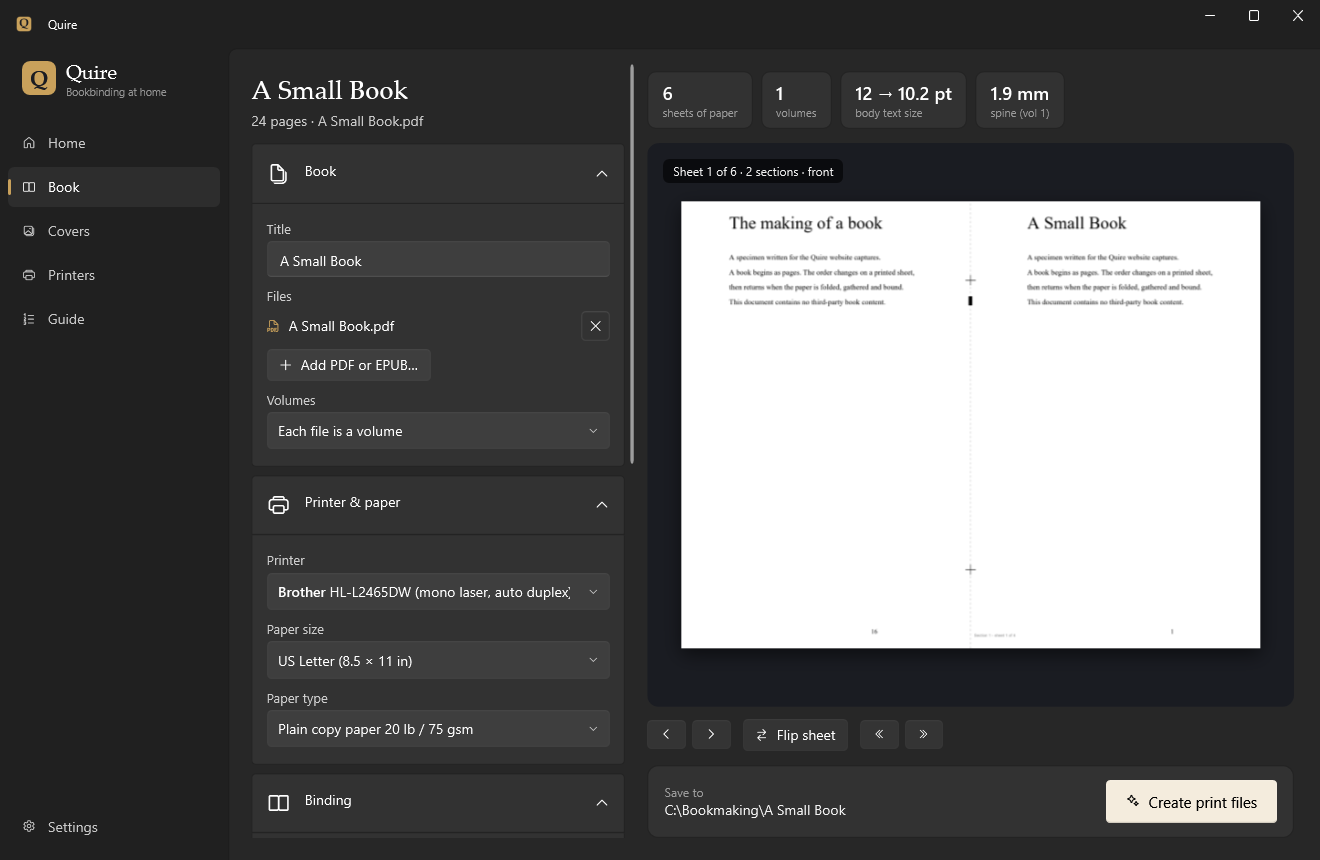
The preview shows the printed sheet. Pages may look out of order because folding and binding put them back into reading order. Try the booklet example to see why.
Inspect the first sheet, flip to its back, then move through the remaining sheets. Check page orientation, margins, volume boundaries, and the chosen flip edge. Make a small practice book before the full job.
Calibrate before printing
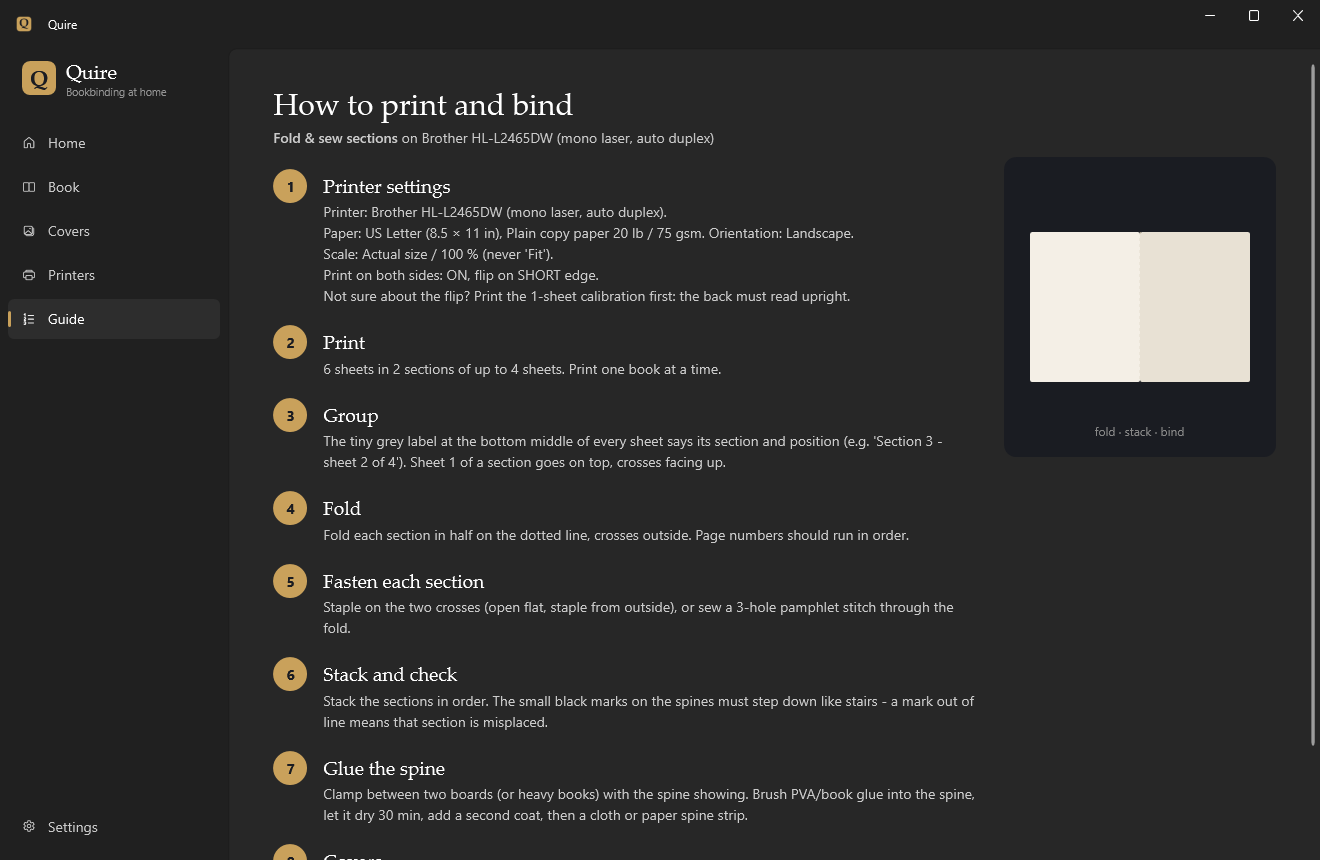
Run the one-sheet calibration to measure the printer’s scale, printable edges, and front/back alignment. Confirm the paper loaded in the printer matches the selected size.
Quire reads capabilities from the Windows driver and validates jobs against that driver. Duplex, colour, borderless printing, and margins depend on what the driver reports. Driver acceptance does not prove the physical result.
Known verification limit: accepted print jobs have been tested. Physical printing, alignment, paper handling, and binding outcomes have not been verified. Check a short sample and follow the printer-specific guide.
Finish with Cover Studio
Use an EPUB cover, an image, or the clipboard. The released app also offers image search through Apple Books and Open Library; these online sources need network access.
Pick a one-piece wrap, a two-piece cover with a glue map, or front/back panels. Review the print-resolution check and the spine width for each volume. Print a test at the intended scale before cutting cover stock.
Keep the right source close
The illustrated workflow was documented with v1.0.0; the download record now identifies v1.2.2. Its changed behavior has not been fully requalified by these screenshots or this guide. The repository README may describe subsequent development. Use release notes for the version you have.