A PDF is pages.
A book is sheets.
How to print a PDF as a book at home, from the first paper decision to a small, useful test.
Choose the construction first
A PDF is already in reading order. A printer sees sides of sheets. Folding, cutting and gathering change where each page ends up, so ordinary “two pages per sheet” is not a substitute for the right layout.
For a small booklet, nest all the folded sheets together and stitch or staple the spine. For a longer sewn book, divide the pages into smaller folded sections, then join the sections. Cut-and-stack keeps pages in piles that are cut and gathered rather than nested. Pick this physical plan before generating your print file.
Start with the paper you can load
Landscape A4 folded once gives a natural half-sheet of 148.5 × 210 mm. Letter gives 5.5 × 8.5 inches. These are cells before trimming or printable margins, not a promise that existing PDF text will fit. A PDF designed for a large page may become too small to read when reduced.
Inspect a typical dense page and a page with wide artwork. Allow room at the fold and for your printer’s nonprinting edges. If you are working from an EPUB instead, the application can typeset it for a chosen page; this website does not typeset or accept your files.
Count positions, not just document pages
A folded duplex sheet holds four book pages. A 13-page booklet therefore uses four sheets and 16 positions, with three blanks at the end. A 13-page single-sided single-sheet document uses 13 sheets instead. Those are different constructions, not different answers to one calculation.
For sewn sections, choose a manageable number of sheets per section. Quire’s basic layout permits a shorter final section. For example, 292 pages use 73 sheets: 18 four-sheet sections plus one one-sheet section, with no blank padding. Do not assume every section must be padded to 16 pages.
Calculate the sheet count and inspect page slots for all six methods. Add covers, endpapers and spare calibration stock separately; they are not included in that document count.
Separate the PDF job from the driver job
Once a file is imposed, do not ask the printer driver to impose it again. Check for another booklet or n-up option, unexpected page scaling, the wrong stock and an inherited duplex default. The desired layout orientation and the driver’s granted settings must agree.
For Quire’s two-up folded layouts, the plan requests landscape and short-edge duplex. Driver acceptance and physical front/back alignment still require checks. Manual duplex refeeding varies by printer; use the device’s documented instructions and mark a small test sheet rather than guess.
Rehearse with eight pages
Use the original numbered practice PDF below, inspect all four imposed sides, then print only the two-sheet sample if you decide to test your printer. Fold the outer sheet around the inner one. Read pages 1 through 8 in sequence, check the top-of-page labels, and note whether the fold and content stay clear of unprintable margins.
| Sheet | Front · left | right | Back · left | right |
|---|---|---|
| 1 | 8 | 1 | 2 | 7 |
| 2 | 6 | 3 | 4 | 5 |
Get the original practice and exact print settings. A correct digital preview narrows the investigation; it does not prove what your printer will produce. When the sample works, save those actual driver settings before attempting the full book.
Use the app when the plan is ready
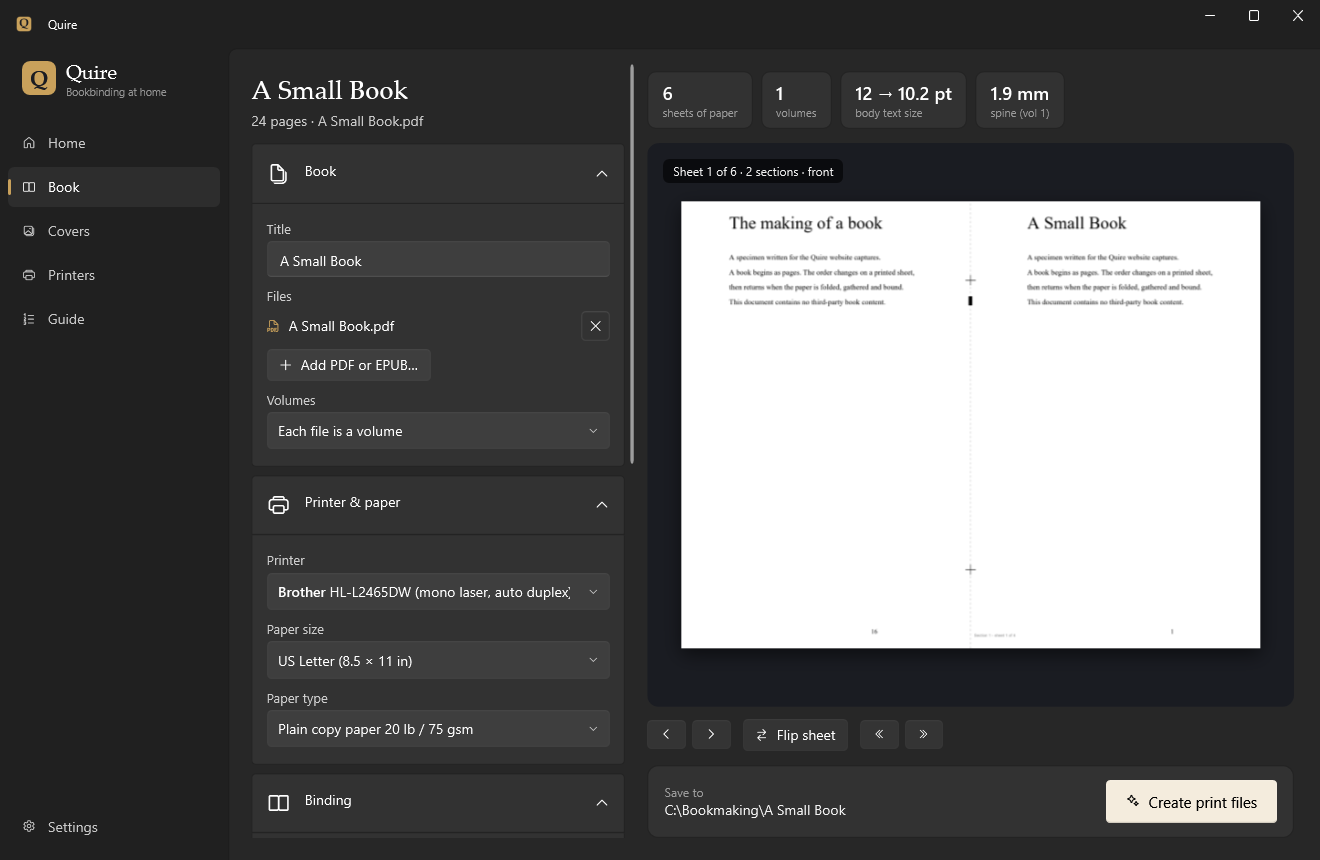
The free planner handles counts and a simple page sequence. Quire’s Windows workflow adds your actual PDF/EPUB, sheet preview, volume and cover work. Read the released-app guide and check requirements and the pinned release record before downloading. The executable uses a public distribution repository; the application source remains private. The site’s verified screenshots remain from v1.0.0.
Digital layout checks are not physical print qualification. Test a small sample with your own paper, driver and printer. Quire’s executable is publicly downloadable while its application source remains private; this free tool does not require the app.